 DAVx⁵
DAVx⁵

Sync with ease using DAVx⁵ Select
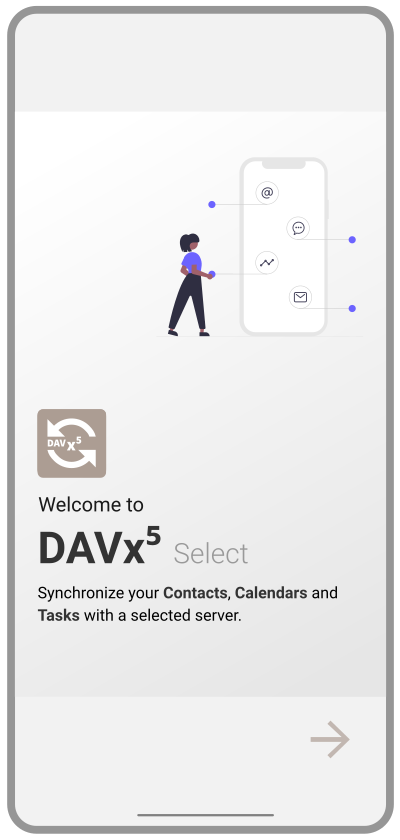
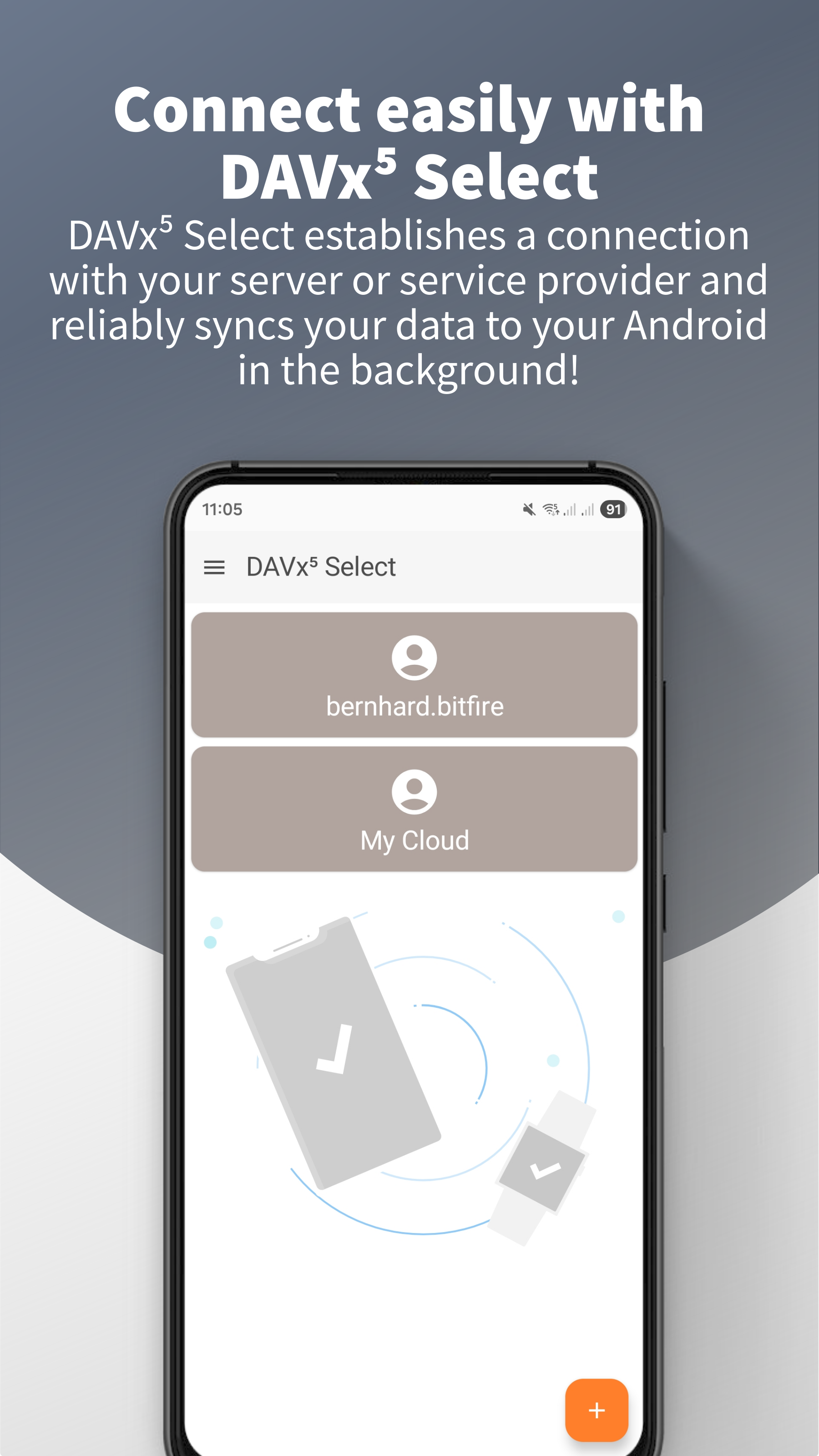
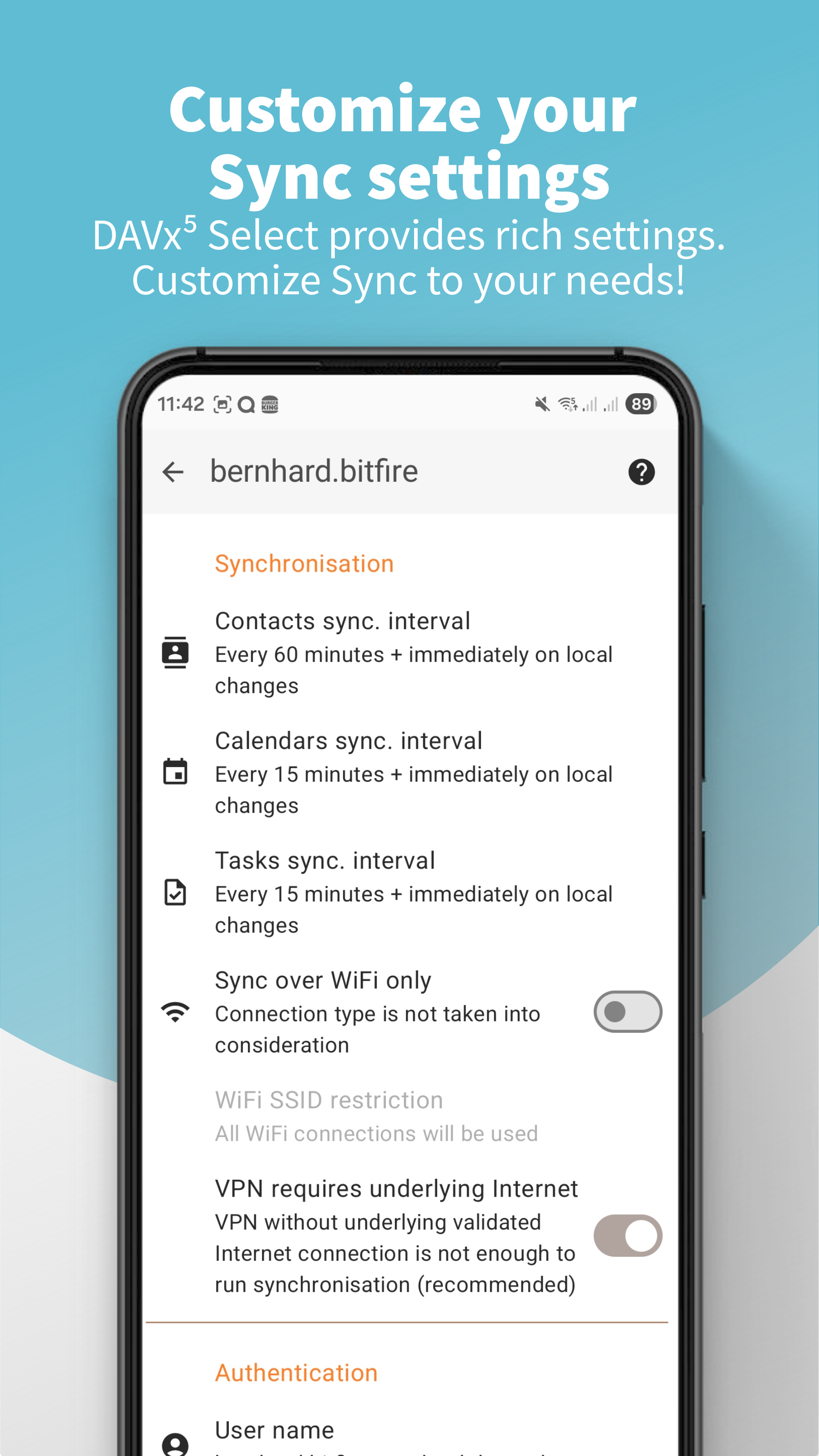
DAVx⁵ Select can be used to synchronize Contacts, Calendars and Tasks with a selected server (see which servers are supported in the list below). This is a special version that is available free-of-charge in the Google Play Store. It offers the same great sync abilities as DAVx⁵ (the one with the green sync logo) but server vendors have a cooperation with us so that you can setup synchronization for free, also from Google Play.
Currently you can use DAVx⁵ Select with:
- Open-Xchange App Suite – and all OX based servers. OX is a worldwide operating server provider that is not just used by ISP and governmental organizations but also offering the server for free and open source if you want to self-host. It also offers the cloud as a service.
Instant setup with Scan & Sync
- Install DAVx⁵ Select (or DAVx⁵ if you want to extra-support the project) from the Google Play Store
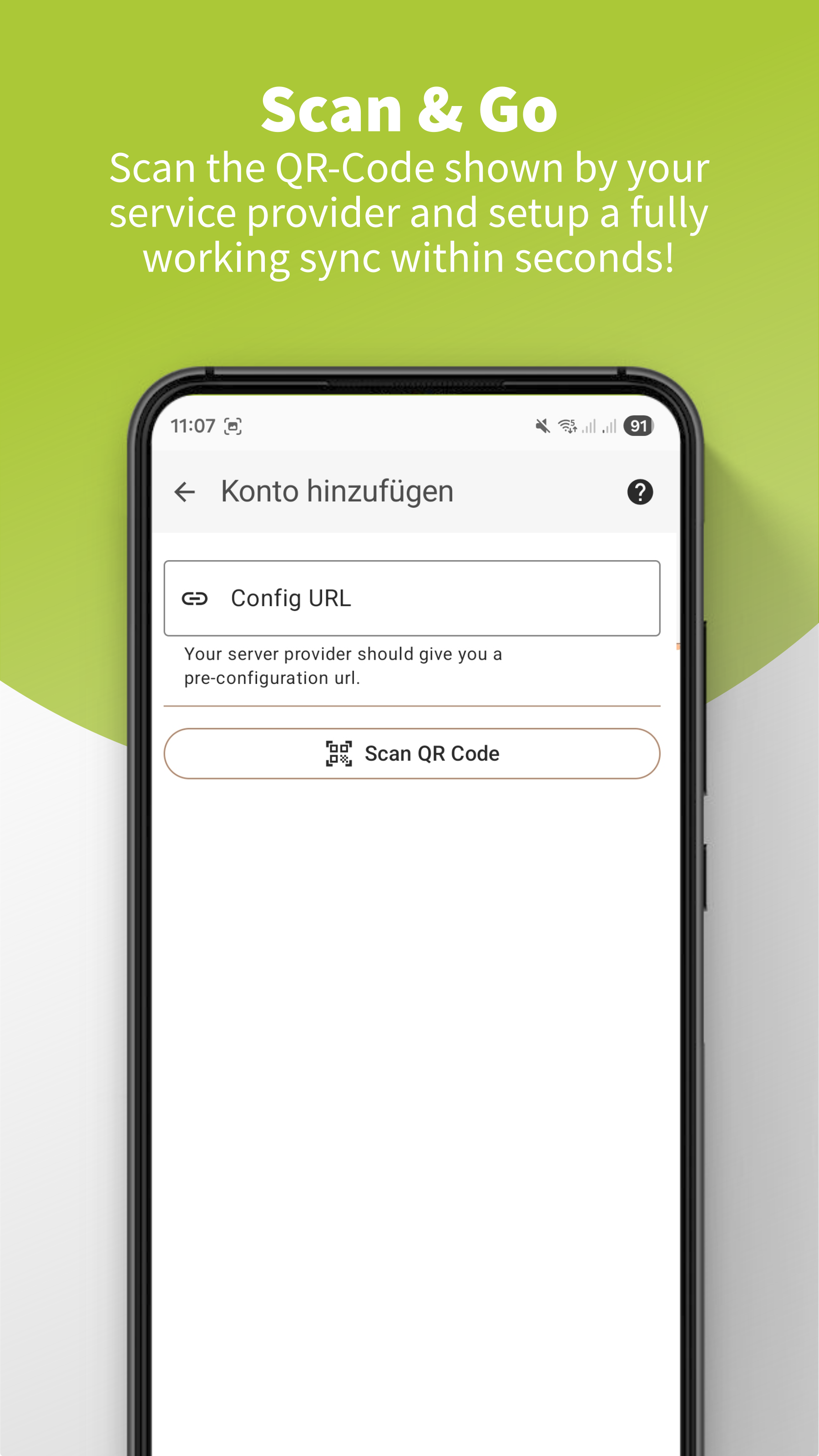
- Open the website of your server provider and find the link / QR code for DAVx⁵ / DAVx⁵ Select that is shown
- Click the link on your mobile phone or scan the code using any app or from within DAVx⁵
- Click “Start setup” and add the account.
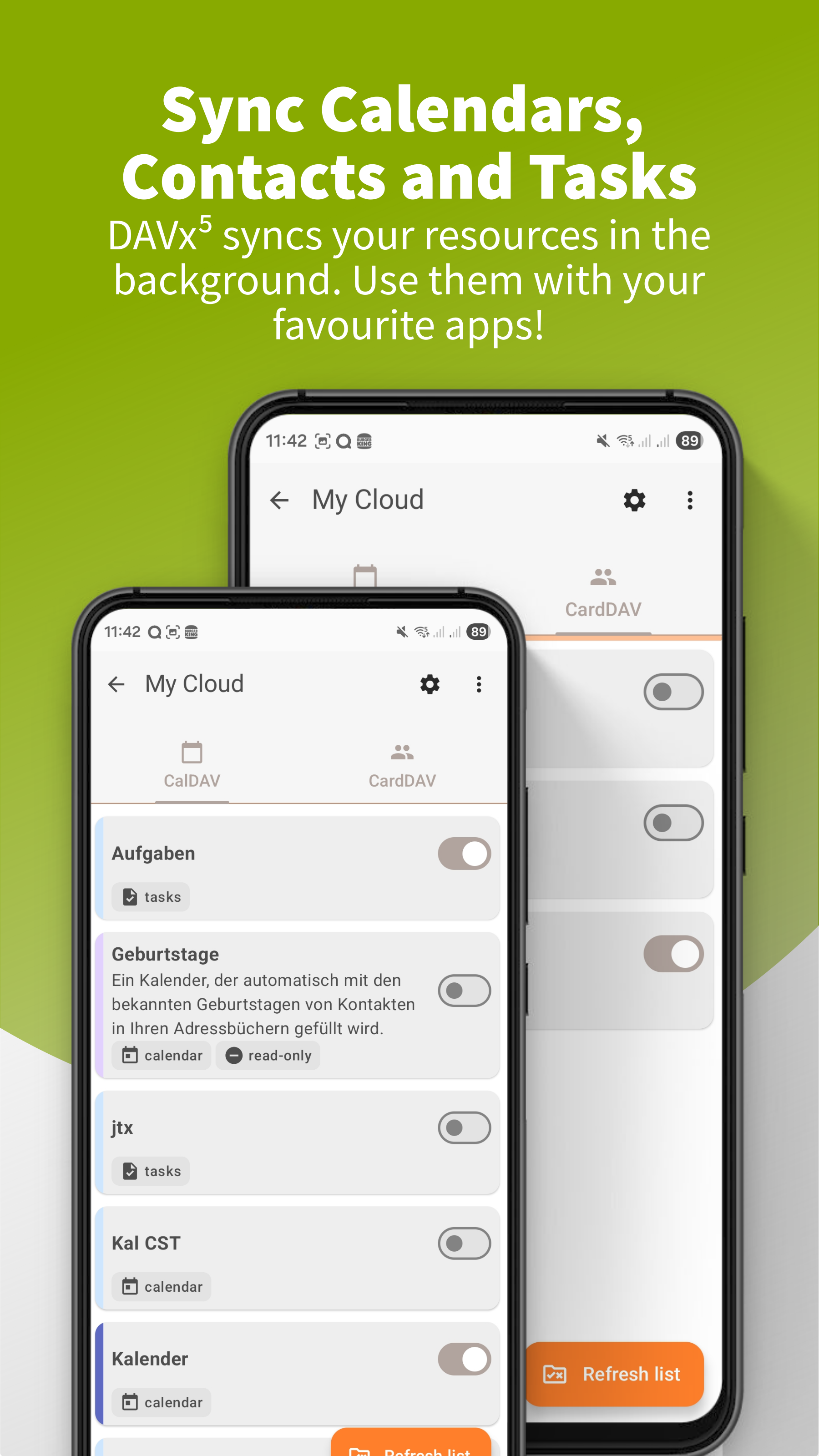
- Activate your address book and your calendars / task lists and press the Sync button. Your items will be transferred to your device and should show up in the respective apps (Contacts app / Calendar app and your selected tasks app if you want to sync tasks as well)
Technical information
You can open URLs directly in DAVx⁵ / DAVx⁵ Select by clicking links in this format:
davx5://setup?config=https://example.com/config.json
For more information on the relevant fields in the config file please have a look into our manual.
The config file, the link above and/or the QR code to easily start the setup in DAVx5 Select should be provided by your server vendor and is usually found in the section for device integration in the respective web backend.