 DAVx⁵
DAVx⁵
Can I access files using DAVx⁵?
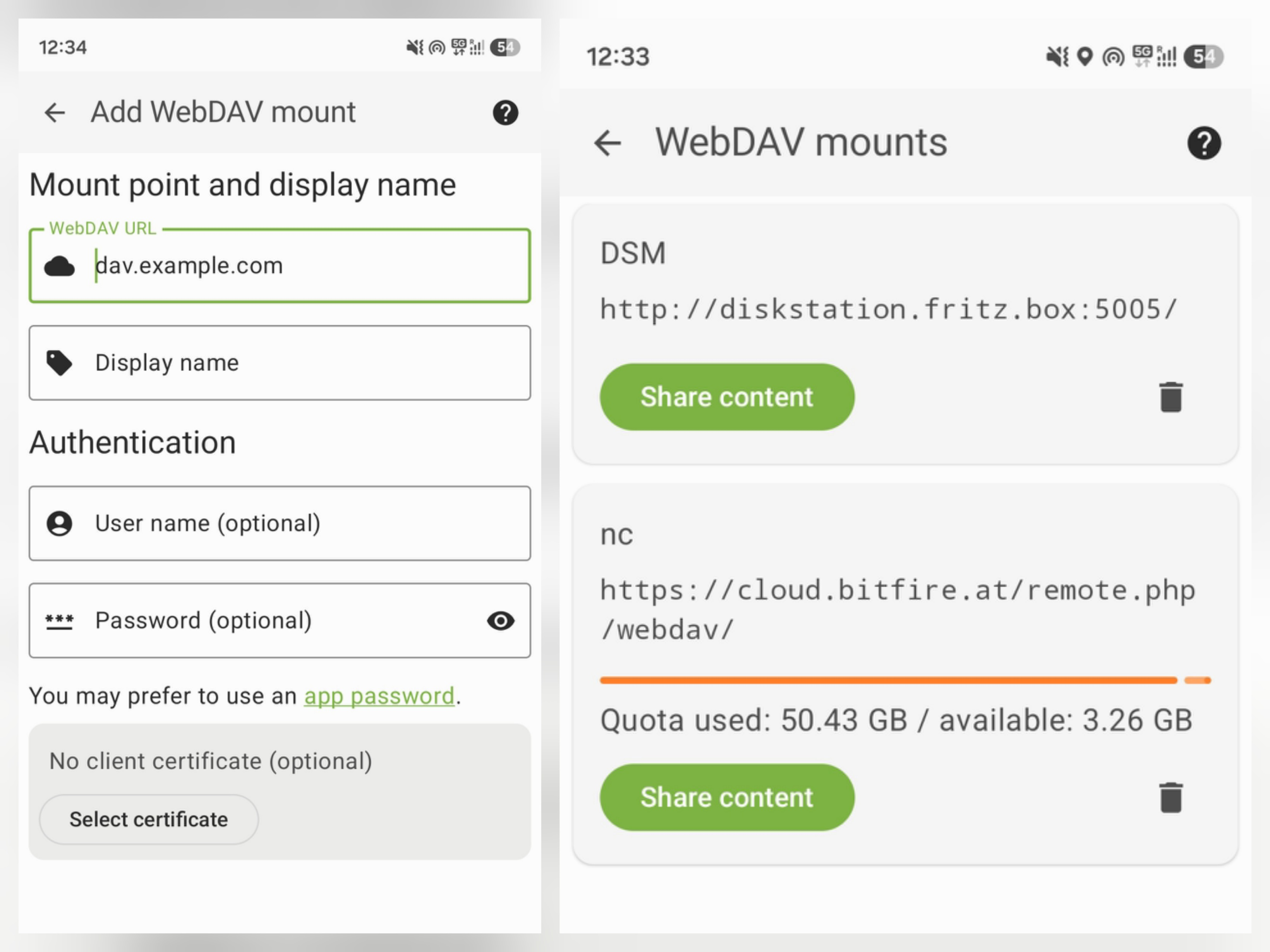
Yes, you can. The primary goal of DAVx⁵ is to synchronize CalDAV/CardDAV collections with Android devices, however you can also access your files if they are provided via the WebDAV protocol.
DAVx⁵ offers
- a separate tool (DAVx5 side drawer / Tools / WebDAV mount) to connect to your WebDAV server
- basic in-app functionality to view and share files
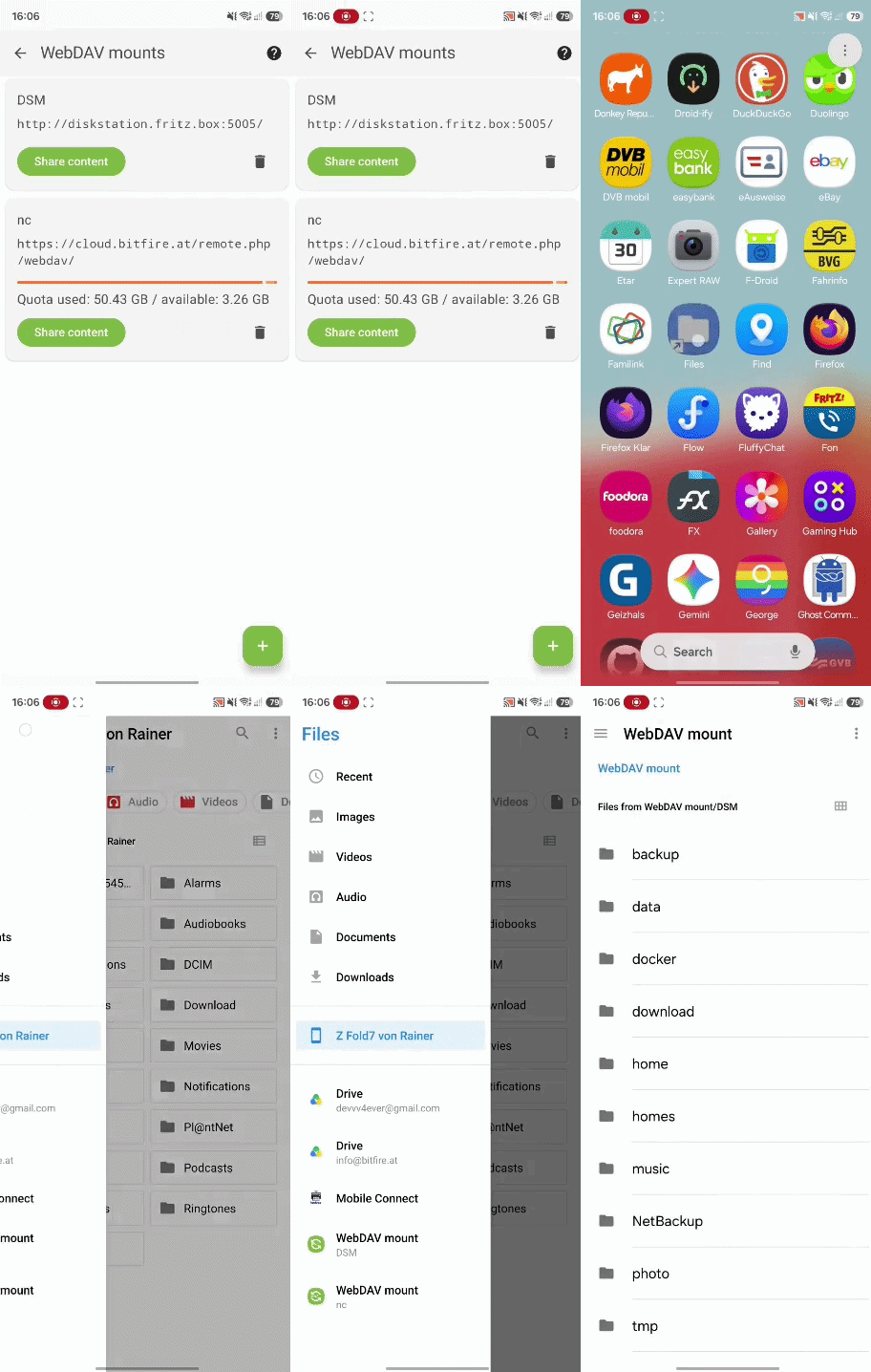
- integration with Androids Storage Access Framework. DAVx5 acts as a gateway / remote folder here and when added to a compatible files app (see list below) you can make use of all classic file manager operations (create, edit, delete files).
DAVx⁵ is not
- a files sync app. It provides access to your WebDAV files to work with them on Android by streaming the files but you can't setup a folder-sync.
Data storage: Your files remain on the server, and on request they are opened and it's contents will be streamed to the Android device.
Supported file managers
To gain the full potential of file management, you can use any file manager app on Android that supports the SAF (Storage Access Framework). Here is a list of apps that are known to work well:
- AOSP File Manager (default in many custom ROMs like LineageOS). If it doesn't appear by default on your device (e.g. stock Android), you can open it using the DocumentsUI Shortcut app from F-Droid, a tiny launcher for Android's built-in Files app.
- Material Files — open-source Material Design file manager
- Total Commander — choose "Add Custom Location" → open side drawer → choose the DAVx⁵ mount. Hint: you need to reload / swipe down and refresh the folder if it appears to be empty.
- fx File Explorer — top right menu: "Connect to Storage" → open side drawer → choose the DAVx⁵ mount
Accessing the remote folder in your files app
Pre-installed file managers
File managers that are pre-installed system packages have direct access to SAF. When the file manager supports SAF, you can directly browse into DAVx⁵ WebDAV mounts (usually in the navigation draw
Manually installed file managers
Manually installed file managers (like Material Files) don't have the permission to access SAF mounts automatically. To add a mount in such a file manager, you have to:
- Add an external mount.
- Select the respective DAVx⁵ mount in the directory chooser (usually in the navigation drawer).
- Confirm the location ("Use this directory as root directory").
- Then you can use the DAVx⁵ mount in the file manager.
For more information, also have a look to the manual section about WebDAV mounts.